


Image to Link
Upload an image and create direct URLs, preview pages and embed formats.
JPGPNGWEBPGIF
Sometimes your file is ready, but the website, form or app where you need it asks for a URL instead. Media2URL gives you dedicated conversion engines to turn images, videos, GIFs, PDFs, audio and documents into direct links.
Choose your media tool below to get instant direct URLs, embed codes, custom expiry, and fast CDN delivery. Files saved to your account stay organized in your media library for easy reuse.
product-hero-launch.webp
1920 × 1080 · WebP · 1.4 MB · 28ms
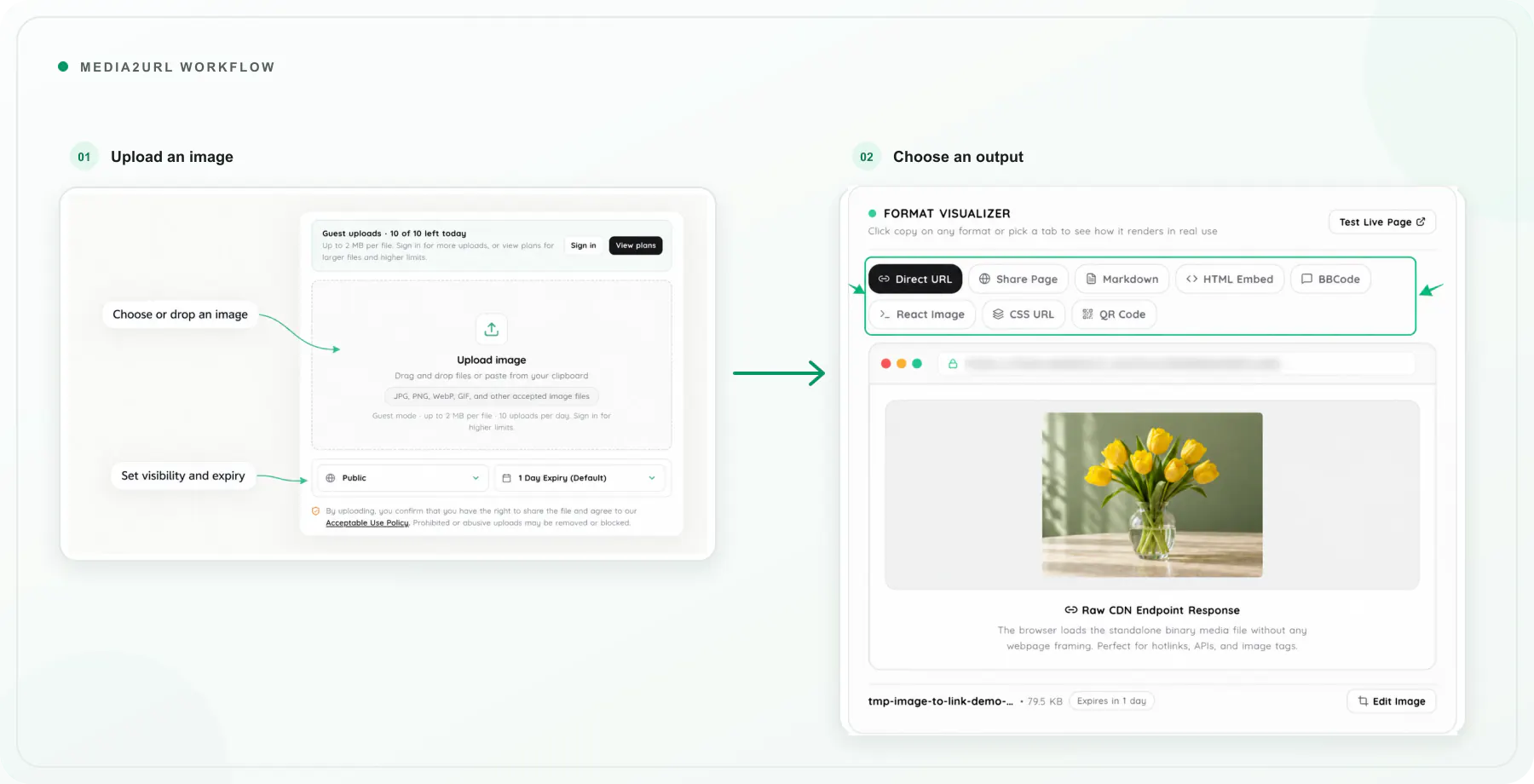
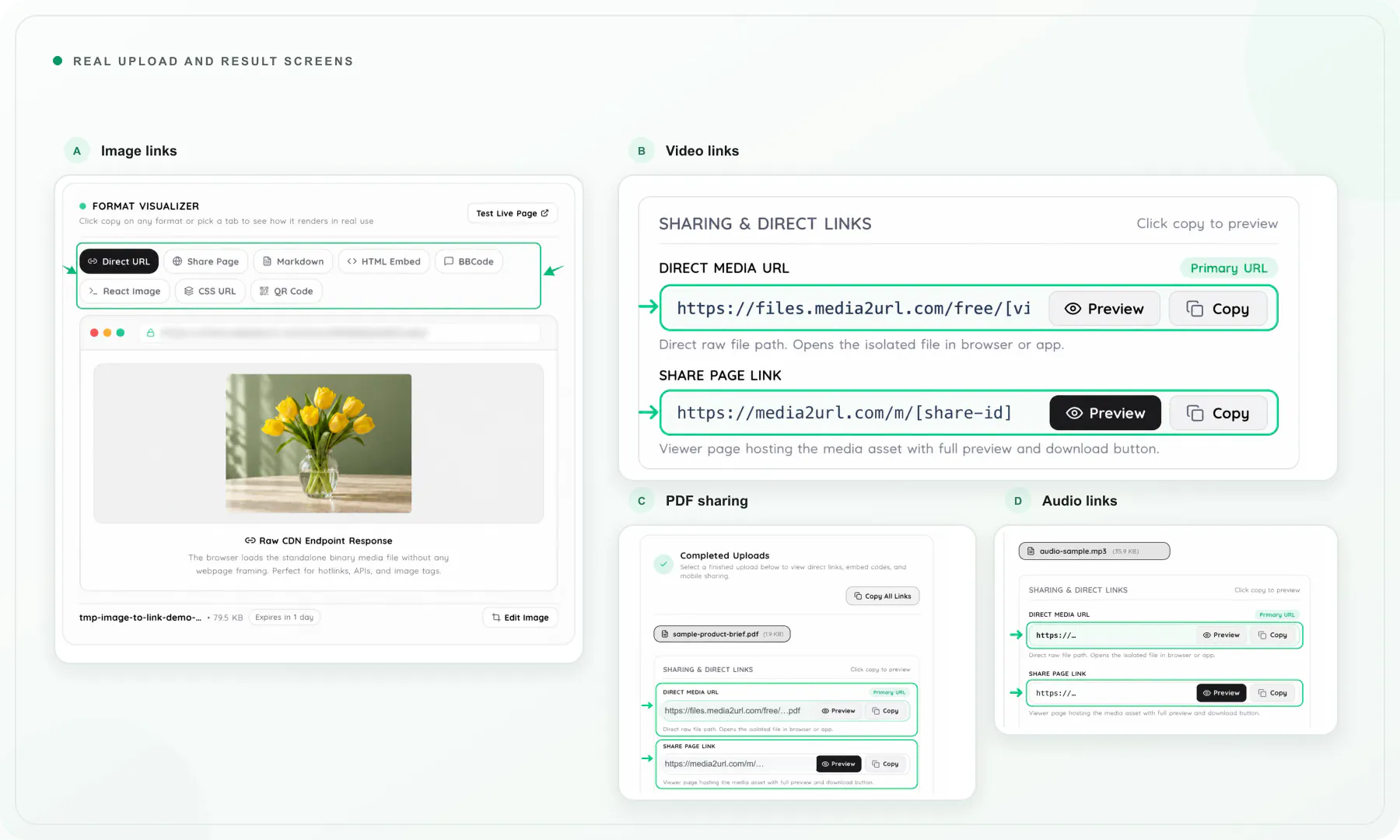
Media2URL lets you upload media files and turn them into shareable links. You can upload images, videos, GIFs, PDFs, audio and safe files, then copy a direct URL, share page, HTML code, Markdown code, BBCode or QR code based on the file type. You can also choose privacy and expiry settings before the link is created.

Different media files require different sharing formats, players and privacy controls. Choose the specialized converter or processing tool below tailored to your exact file format and use case.
Upload your file to get direct URLs, share pages, HTML tags, Markdown snippets, and QR codes.
Upload an image and create direct URLs, preview pages and embed formats.
Host a supported video and share it without sending the full attachment.
Upload an animated GIF and copy a link for websites, chats or documents.
Upload a PDF and create a link to open in the browser or download.
Upload an audio file and share it through a hosted link.
Upload a document or file and create a link to share or download.
Capture or upload a screenshot and create a shareable URL.
Upload several images and export their available links together.
Render static HTML files with live preview URLs and shareable links.
Prepare, trim, adjust, organize, or transform files directly before sharing.
Crop, annotate, watermark, and resize images in your browser.
Merge, split, organise, compress and reorder PDF documents.
Compress, trim or prepare videos for web playback.
Change speed, reverse frames, and compress animated GIFs.
Trim audio tracks and convert files into required formats.
Resize, crop, and convert image formats on the fly via URL parameters.
Protect confidential files, configure self-destructing links, or diagnose broken remote URLs.
Restrict files with private token authentication and passwords.
Set self-destruct timers or view limits on sensitive file URLs.
Enterprise link governance, password rules, and view restrictions.
Check external URLs for redirects, CORS issues, and header errors.
Looking for another media action? Browse the complete Tools directory for all upload, conversion and diagnostic tools.
Browse All Media ToolsUploading is only the first step. Here is how your media moves through Media2URL—from browser ingestion to CDN caching, browser processing, and lifetime version control.
Media2URL keeps uploaded files inside your workspace so they are easier to find after the first use. Folder, search and bulk management options help you stay organised as your library grows.

Create folders for clients, websites, campaigns or product lines. Files can be moved between folders without uploading them again.
Find assets through filenames, tags and supported media filters instead of checking old messages or upload history.
Mark important files or folders so they remain easy to reach from the dashboard.
Select several assets and update their folder, tags, visibility or expiry settings together.
Files saved to your account stay organized in your media library. Manage assets in folders, collaborate with your team, connect custom domains, and track performance metrics without needing third-party tools.
Keep uploaded files inside folders and searchable asset views.
Keep projects separate and give members the access required for their role.
Connect branded domains and subdomains for verified direct media links.
Monitor real-time view counts, bandwidth, and download metrics.
Example workspace shown with demo files
Need customized sharing, high-volume CDN delivery, or role-based collaboration? Explore how teams streamline their media operations with Media2URL.
Every file is protected with granular access rules, workspace boundaries, and strict legal compliance from the moment it is uploaded.
Set passwords, restricted token access, or self-destruct timers on sensitive files before distributing links.
Keep assets strictly partitioned across client and team workspaces with role-based member permissions.
All transfers run over TLS 1.3 in transit and AES-256 at rest across resilient edge storage.
Instant abuse reporting workflows and automated takedown protocols protect intellectual property.

The free plan covers basic media uploads and link creation. Paid plans add higher limits, media processing, private sharing, custom domains, and team workspaces.
Find quick answers about uploads, media tools, workspaces and sharing controls.
Media2URL helps when you have a file but the place where you need to use it asks for a link instead. You can upload supported images, videos, GIFs, PDFs, audio and other files, then copy the direct URL or another available sharing format.
Files saved to your account can also stay in the media library when you need to find or reuse them later.
Yes. Media2URL can generate a direct URL for supported uploads. The link points to the file itself, which is useful when a website, HTML tag, Markdown document or another field asks for the actual media address.
You can also use a share page when you want someone to open the file through a hosted preview instead.
A direct URL opens the file itself. It is usually the right option when a website, app, HTML tag or Markdown document needs the actual file address.
A share page opens the file inside a Media2URL page with the available preview and file actions. This is generally easier when you are sending the link to another person.
Yes. Expiry settings can be used for supported files when you do not want a link to remain available indefinitely. This can be useful for support files, temporary screenshots, client reviews or other short term sharing.
Once the selected expiry condition is reached, the link will no longer provide normal access to the file.
Yes. Password protection can be applied where the feature is supported. It is useful when you are sharing a client file or another upload that should not be openly accessible to anyone with the link.
A visitor must enter the correct password before accessing the protected content through the supported sharing flow.
Yes. Media2URL supports videos, PDFs, images, GIFs, audio and other supported file types within the limits of your account and plan.
This means different file types can stay inside the same Media2URL workspace instead of being scattered across separate upload tools.
Yes. You can remove uploaded files from your dashboard. Once a file is deleted, its normal hosted access and generated links are no longer intended to remain active.
Temporary backups or technical records may remain for the period described in the Media2URL Data Retention policy.
Public website upload tools accept supported files up to 2 MB per file, with a maximum of 10 uploads per day for guests. Sign in for more uploads, or upgrade for larger files and higher limits.
No. Images are one common use case, but Media2URL also supports other file types such as videos, GIFs, PDFs and audio where available.
Files saved to an account can also use the media library and other supported workspace tools. The exact features and limits depend on the current plan.
Still looking for an answer? Check the features directory for more details about uploads, media tools and workspace settings.
Browse the Complete Features DirectoryMedia2URL apps & extensions
Choose from browser extensions, editor and design plugins, website and Workspace integrations, and the Windows app. Explore the products below to find the one that fits your workflow.

Drag, paste or capture an image in Chrome and turn it into a Media2URL link.

Upload project assets and insert hosted URLs into your code and documentation.

Bring Media2URL’s cloud asset manager into your JetBrains IDE.

Select an image, paste from your clipboard or capture a tab to create a link.

Capture or upload images from Edge’s side panel and copy shareable links.

Connect your WordPress media library to Media2URL’s cloud storage and CDN.

Publish selected designs as hosted links, or bring library assets onto your canvas.

Find the Media2URL desktop app in the Microsoft Store for Windows.

Publish Google Drive files as direct links, QR codes, and same-URL updates.